How to Use Tesla Dashcam: USB Setup, Saving Clips, and Viewing Footage
Published October 15, 2026
Quick answer
To use Tesla dashcam, plug a properly formatted USB drive or microSD card into a front USB port, confirm the dashcam icon appears, and let the car record automatically while driving. Press the icon or honk to save a clip, open Dashcam Viewer on the touchscreen to review footage, and pull the drive to copy clips to a phone or computer before they are overwritten. Knowing how to use Tesla dashcam matters most in the minutes after an incident, when the clip you need is still on the drive.
Table of contents13 sections · tap to expand
Key takeaways
- Tesla dashcam records from the car's built-in cameras to a USB drive you supply; without a drive, there is nothing saved.
- Recording is automatic while driving, but only saved clips are protected from loop recording, so save or lock footage immediately after an incident.
- Dashcam Viewer on the touchscreen plays clips in the car; a phone adapter or computer is needed to copy files off the drive.
- Tesla's system does not cover the rear bumper or cabin, and Sentry Mode is not the same as buffered parking recording.
- A dedicated 3-channel dash cam adds rear, interior and buffered parking coverage that Tesla does not provide.
As an Amazon Associate we earn from qualifying purchases. This never changes which products we recommend.
Recommended products
Products that fit this
| Product | Best for | Where to buy |
|---|---|---|
| Vantrue N4 Pro S | Rear, interior and buffered parking coverage to fill Tesla's gaps | Check price on Amazon |
| 70mai T800E | Plug-and-play 3-channel coverage with parking monitoring | Check price on Amazon |
| ROVE R3 | Rideshare and cabin coverage with a simple touchscreen | Check price on Amazon |
What is Tesla's built-in dashcam and which cars have it?
Tesla dashcam is a built-in recording feature that uses the car's Autopilot and backup cameras to write video to a USB drive you provide. It is standard on Model 3, Model Y, Model S and Model X built since roughly 2018, and it activates whenever the car is powered on and a compatible drive is connected.
The system records a continuous loop while you drive, splitting footage into short segments. It does not record audio, and it does not record while the car is fully asleep unless Sentry Mode is active. Think of it as a rolling buffer: the car is always writing, but only the segments you save are kept.
Coverage is front-facing plus the side repeater and pillar cameras, which is enough to document most forward collisions and lane-change disputes. It does not see directly behind the car or inside the cabin, so a rear-end hit or a passenger incident may not be captured.
Expectations matter here. Tesla dashcam is convenient because there is nothing to mount or wire, but it is a driver-assist byproduct rather than a purpose-built evidence camera. Resolution, frame rate and low-light performance are set by Tesla and cannot be tuned.
What USB drive or microSD setup does Tesla dashcam need?
Tesla dashcam needs a USB drive or microSD card formatted to exFAT or FAT32 with a folder named TeslaCam at the root. The drive must be able to sustain continuous writes, because the car writes video constantly while driving and a slow drive will drop segments or stop recording.
A high-endurance microSD card in a USB reader is the more durable choice for daily driving, since cards built for dash cams tolerate repeated overwrite cycles better than ordinary flash drives. Capacity of 128 GB or more gives you a reasonable buffer before old clips are recycled.
The folder structure is simple but unforgiving. The root holds TeslaCam, and inside it the car creates SavedClips and SentryClips for footage you save manually or that Sentry Mode captures. If the folder name is wrong or the drive is formatted incorrectly, the dashcam icon will not appear.
Format the drive on a computer, not in the car, and label it clearly so you do not mix it up with a music drive. Once formatted, insert it into a front USB port and give the car a moment to recognize it.
- Format the drive to exFAT (or FAT32 for smaller drives) on a computer.
- Create a folder named TeslaCam at the root of the drive.
- Insert the drive into a front USB port in the Tesla.
- Confirm the dashcam icon appears on the touchscreen; if it does not, recheck the folder name and format.
How do you turn on and control Tesla dashcam recording?
Tesla dashcam recording starts automatically when the car is on and a valid drive is connected, so there is no on switch to flip each trip. What you control is saving: the touchscreen dashcam icon, a horn press, or Sentry Mode determines which clips are preserved.
Auto mode is the default continuous loop. Manual save happens when you tap the dashcam icon, which stores the last several minutes into SavedClips. Honk to Save, when enabled, does the same thing when you press the horn, which is useful in the moment after a near miss.
Sentry Mode is separate. It watches the car while parked and writes triggered events to SentryClips, but it is event-based rather than continuous buffering, so it may miss the seconds before an impact. It also draws battery power, which matters if you leave the car parked for days.
If the dashcam icon disappears or recording stops, the usual causes are a full or failing drive, a corrupted file system, or a drive that cannot keep up with the write speed. Reformatting the drive and reinserting it resolves most of these cases.
- Confirm the dashcam icon is visible on the touchscreen.
- Tap the icon to save the current clip manually.
- Enable Honk to Save in settings if you want the horn to trigger a save.
- Turn on Sentry Mode for parked coverage, and check SentryClips afterward.
How do you view Tesla dashcam footage in the car?
Open Dashcam Viewer from the touchscreen app launcher to play saved clips without removing the drive. The viewer lists clips by camera and timestamp, and you can scrub through segments to find the moment you need.
Playback controls let you pause, step through frames and switch between camera angles for the same timestamp. This is the fastest way to confirm a clip captured what you hoped before you go to the trouble of copying it off the drive.
The in-car viewer is for review, not for export. You cannot email or message a clip from the touchscreen, so anything you need to hand to an insurer, a police report or a repair shop has to be copied off the drive first.
If the viewer shows no clips, check whether the footage was saved at all. Continuous loop segments that were never saved are overwritten and will not appear in SavedClips or SentryClips.
- Open the app launcher and select Dashcam Viewer.
- Choose the clip by date and camera angle.
- Use playback controls to scrub to the relevant moment.
- Note the timestamp before leaving the car so you can find the same file later.
How do you access Tesla dashcam clips on a phone or computer?
To access Tesla dashcam footage on a phone, remove the USB drive from the car and connect it with a USB-C or Lightning adapter, then open the TeslaCam folder in your file manager. Clips are standard MP4 files, so they play in most phone video apps without extra software.
On a computer, plug the drive into a USB port and open TeslaCam, then SavedClips or SentryClips. Each clip is named with a timestamp and camera identifier, which makes it easy to line up the front, side and pillar views of the same event.
A wireless drive or a card reader paired with a phone can shorten the process, but those setups add their own failure points and still require the car to write reliably to the card. Copying files directly from the drive remains the method that works with any phone or laptop.
Copy the clips you need to your phone or computer before you put the drive back. Leaving them on the drive risks them being overwritten by the next loop cycle.
- Safely remove the USB drive from the car.
- Connect it to a phone with an adapter or to a computer.
- Open TeslaCam, then SavedClips or SentryClips, and copy the relevant MP4 files.
- Back the copies up to cloud storage or email them to yourself before returning the drive to the car.
How do you save and preserve Tesla dashcam clips as evidence?
Save or lock a clip immediately after an incident, because unsaved loop footage is overwritten as the drive fills. Tapping the dashcam icon or pressing the horn with Honk to Save enabled moves the recent minutes into SavedClips, where they stay until the drive runs out of space.
Once a clip is in SavedClips or SentryClips, copy it off the drive as soon as you can. Keep the original file name and timestamp intact, and store a second copy somewhere separate, because a single drive is a single point of failure.
For insurance or a police report, hand over the unedited file rather than a phone recording of the screen. The timestamp and camera angle in the original file are what make the footage useful, and re-encoding it can strip that detail.
Do not rely on the drive staying untouched. If the car keeps driving, the loop will eventually recycle older saved clips, so treat the drive as temporary storage rather than an archive.
- Save the clip with the dashcam icon or Honk to Save.
- Confirm it appears in SavedClips or SentryClips in Dashcam Viewer.
- Copy the original MP4 files to a computer or cloud folder.
- Keep a backup copy and note the date, time and location of the incident.
What Tesla dashcam does not cover, and when to add a separate dash cam
Tesla dashcam does not record the rear bumper or the cabin, and Sentry Mode is not buffered parking recording, so it can miss the seconds before a parked impact. It also depends on a USB drive that can fail in heat, and it offers no control over resolution, frame rate or night performance.
Those gaps matter most for three drivers: rideshare and taxi drivers who need interior coverage, owners who park on the street and want the moments before a bump, and anyone who wants a rear view of a rear-end collision. A dedicated dash cam fills all three.
The ROVE R3 records front, cabin and rear simultaneously at 2K, 1080p and 1080p, with infrared LEDs for the cabin at night and a supercapacitor instead of a lithium battery. For a Tesla owner who drives for a rideshare platform, that interior channel is the part Tesla cannot provide. Its parking mode is time-lapse, so a driver who wants pre-impact footage from a parked car should look at the Vantrue N4 Pro S instead.
The 70mai T800E covers the same three channels at 4K front, 1080p interior and 1080p rear, includes a 64 GB card and a hardwire kit, and uses a supercapacitor rated for extreme temperatures. It suits a Tesla owner who wants a set-and-forget install with parking monitoring already in the box. Its limitation is that the cloud features depend on a separate plan.
The Vantrue N4 Pro S is the pick when night plate legibility and buffered parking mode matter most. It uses three Sony STARVIS 2 sensors with HDR, records 4K front, 2.5K rear and 1080p interior, and its buffered parking mode captures the 10 seconds before an event. The tradeoff is that the hardwire kit is sold separately and the drive is not included.
Helpful tool
Vantrue N4 Pro S
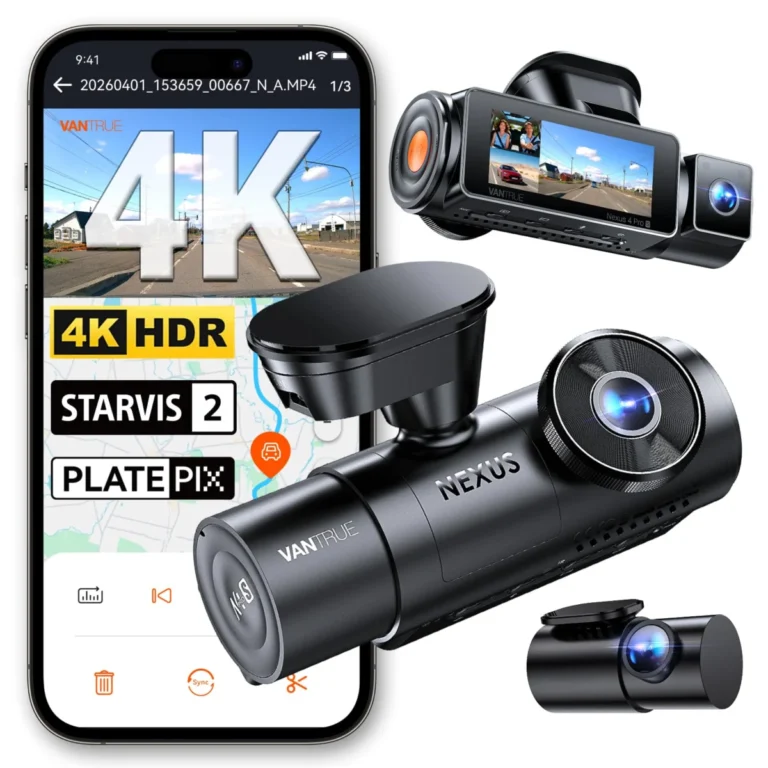
- Helps with: Rear, interior and buffered parking coverage to fill Tesla's gaps
- Keep in mind: Hardwire kit is sold separately and no memory card is included.
Tesla dashcam vs a dedicated dash cam: which do you need?
Tesla dashcam is enough if you mainly want a record of forward driving and you are willing to manage a USB drive. It costs nothing extra, needs no installation, and covers most front-facing collision disputes.
A dedicated dash cam is the better answer if you need rear or interior coverage, buffered parking mode, or footage that does not depend on the car's software and a removable drive. It also gives you control over resolution, frame rate and night performance, which Tesla does not.
Many Tesla owners run both. The built-in system keeps a continuous forward record, and a separate 3-channel camera covers the angles Tesla misses. That combination is common among rideshare drivers and anyone who parks in public lots.
Whichever you choose, check your state or country rules on windshield mounting and audio recording before you install anything, and remember that no camera guarantees an insurer or a court will accept the footage.
Avoid these
Common mistakes to avoid
- Driving without a USB drive installed and assuming the car is recording. Insert a formatted drive and confirm the dashcam icon appears before you rely on the system.
- Waiting days after an incident to save or copy the clip. Save the clip immediately, then copy the original files off the drive the same day.
- Using an ordinary flash drive that cannot sustain continuous writes. Use a high-endurance microSD card in a USB reader, formatted to exFAT with a TeslaCam folder.
- Assuming Sentry Mode captures the seconds before a parked impact. Treat Sentry Mode as event-based, and add a dash cam with buffered parking mode if you need pre-impact footage.
- Handing an insurer a phone recording of the touchscreen instead of the file. Copy the original MP4 with its timestamp and camera angle intact.
Useful tools
Tools that help
As an Amazon Associate we earn from qualifying purchases. This never changes which products we recommend.
Helpful tool
70mai T800E
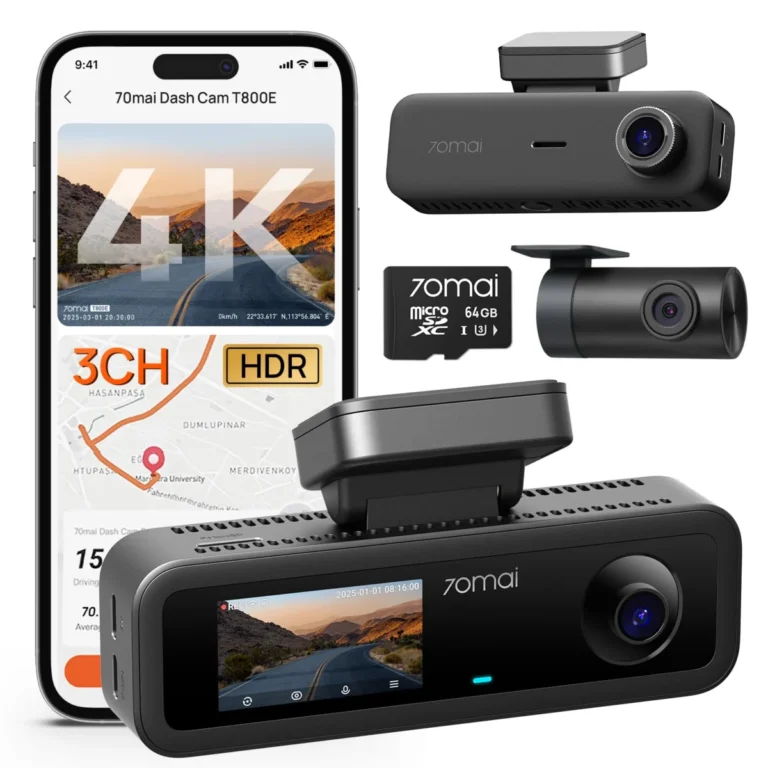
- Helps with: Plug-and-play 3-channel coverage with parking monitoring
- Why it fits: Records 4K front, 1080p interior and 1080p rear, includes a 64 GB card and hardwire kit, and uses a supercapacitor rated for extreme temperatures.
- Keep in mind: Cloud features depend on a separate plan.
Helpful tool
ROVE R3
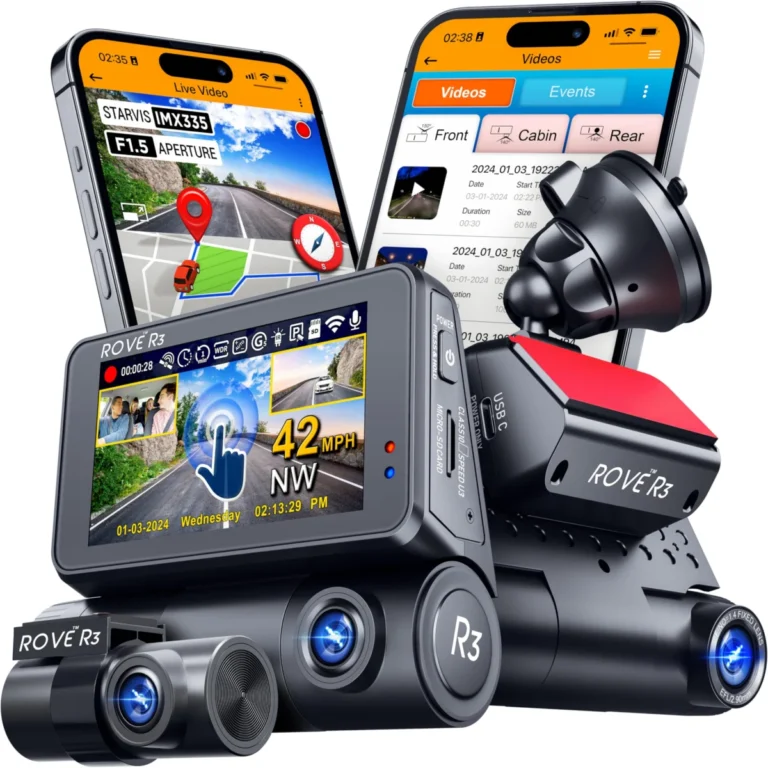
- Helps with: Rideshare and cabin coverage with a simple touchscreen
- Why it fits: Records front, cabin and rear at 2K, 1080p and 1080p with infrared LEDs for the cabin at night and a supercapacitor for heat tolerance.
- Keep in mind: Parking mode is time-lapse rather than buffered, so it does not save pre-impact seconds.
See also: 7 Dash Cams Ranked for Commuters, Rideshare Drivers and Street Parkers.
Common questions
Frequently asked questions
Can I use a regular USB flash drive for Tesla dashcam?
A regular flash drive can work if it is formatted correctly and fast enough to sustain continuous writes, but many consumer drives fail under that load and stop recording. A high-endurance microSD card in a USB reader is the more reliable choice for daily driving.
How do I format a USB drive for Tesla dashcam?
Format the drive to exFAT on a computer, then create a folder named TeslaCam at the root. Insert it into a front USB port and confirm the dashcam icon appears; if it does not, recheck the folder name and the format.
Does Tesla dashcam record audio?
No. Tesla's built-in dashcam captures video only, so there is no cabin audio in the clips. If you need sound, that is one reason to add a separate dash cam, and you should check local consent laws before recording audio.
How long does Tesla keep dashcam footage?
Unsaved loop footage is overwritten as the drive fills, which can happen within hours of driving, while saved clips in SavedClips and SentryClips last until space runs out. Copy anything important off the drive rather than trusting it to stay there.
Can I view Tesla dashcam on my phone without removing the USB drive?
Tesla does not offer a built-in way to stream clips to a phone while the drive stays in the car. The reliable method is to remove the drive and connect it to your phone with a USB-C or Lightning adapter, then open the TeslaCam folder.
What happens if the Tesla dashcam USB drive is full?
The car overwrites the oldest loop footage first, and saved clips are recycled once the drive runs out of space. A larger high-endurance card, 128 GB or more, gives you a longer buffer before that happens.
Next step
If forward coverage is all you need, format a high-endurance drive, confirm the dashcam icon, and save clips immediately after any incident. If you need rear, interior or buffered parking coverage, add a 3-channel dash cam such as the Vantrue N4 Pro S for night plate detail and pre-impact parking clips, the 70mai T800E for an included card and hardwire kit, or the ROVE R3 for a simple touchscreen setup with cabin infrared.
Keep reading
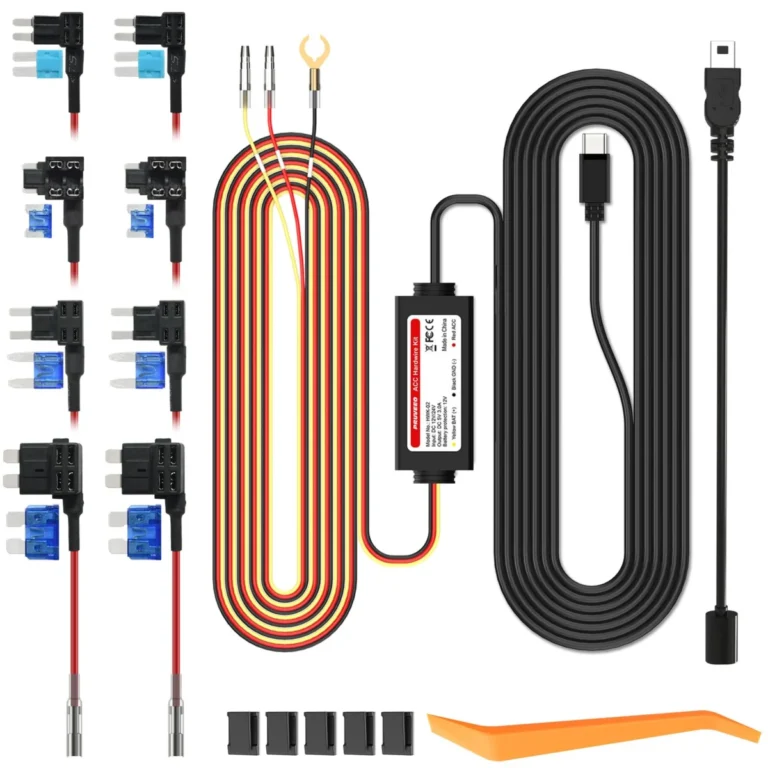
How to Set Up Dash Cam Parking Mode: Wiring, Cutoff and Settings
To set up dash cam parking mode, give the camera a constant power source (a fused fuse-box connection or an OBD cable,…
Does a Dash Cam Lower Car Insurance? What It Really Saves
A dash cam usually does not lower your car insurance premium. Most insurers do not treat a camera as a rating factor,…
Dash Cam Laws in Texas: Mounting, Audio and Footage Rules
Dash cams are legal in Texas for private drivers recording from their own vehicle, and dash cam laws in Texas impose no…